To learn how to set up email automations, see Send an Email with an Automation.
Depending on the scenario, here's a checklist of things to look out for:
Check Why the Run Is Missing from History
Is the automation enabled?
When a new automation is created, by default, it is disabled. Make sure that the automation is enabled.
Are all mandatory fields filled in?
A warning is displayed if they are not. Make sure that the mandatory fields are completed.

Did the automation trigger?
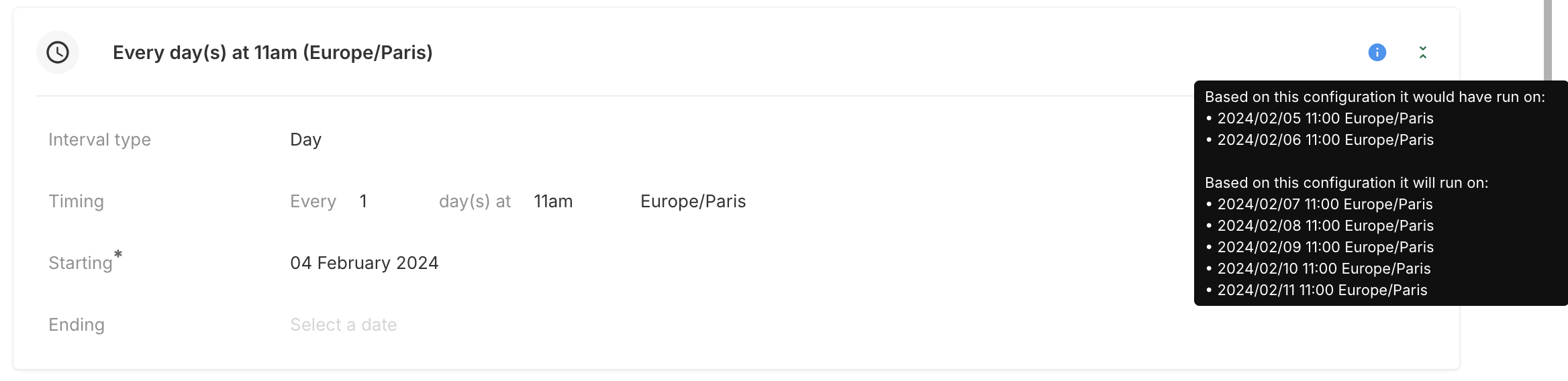
Run at a schedule time
Based on the current configuration, the tooltip helps to know when the automation should have run and will run. In addition, make sure that the timezone is correctly configured, which is Europe/Paris in the configuration below.
Listen to events
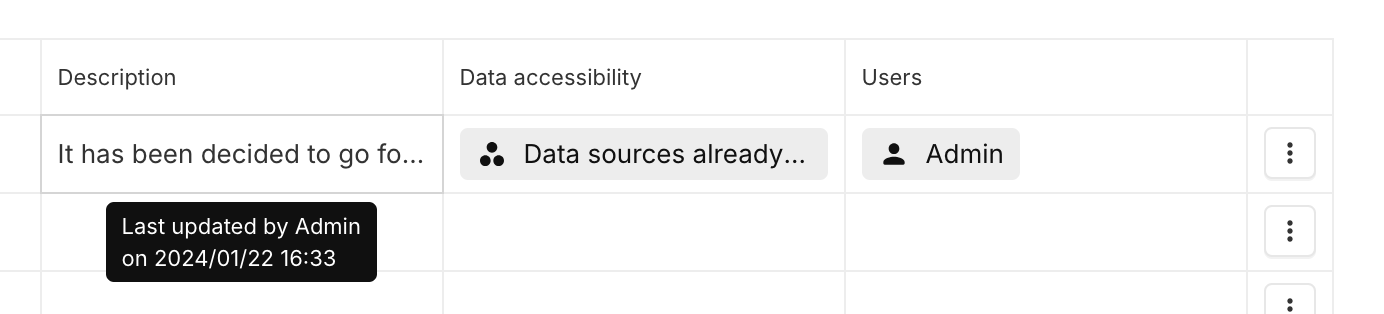
An event corresponding to the defined trigger should be produced in order to have the email sent. It may be useful to reproduce the update again to check.
On hover, the latest update of the field can be seen for the majority of fields:
Manual trigger
Manually trigger the automation and check the history to confirm it was triggered correctly.
Are many automations running at the same time?
If this is the case, a few more minutes can be necessary before the run appears in the run history. In fact, all automations (email and data generation) are executed asynchronously; therefore it is possible to observe a longer or shorter latency depending on the system load.
Check Why a Recipient Is Missing from the History
Are the recipients set correctly?
- If some recipients (section To) are defined via a string (Use a value option), make sure that no typo is present in the email address.
- If the section For each is used to define the recipients, make sure that the path does not return an empty list of users or not the list of users that is expected. In particular, make sure to check the filters, if used, in the For each section. The automation below can be made for a quick check, in order to receive the list of users contained in the For each section:
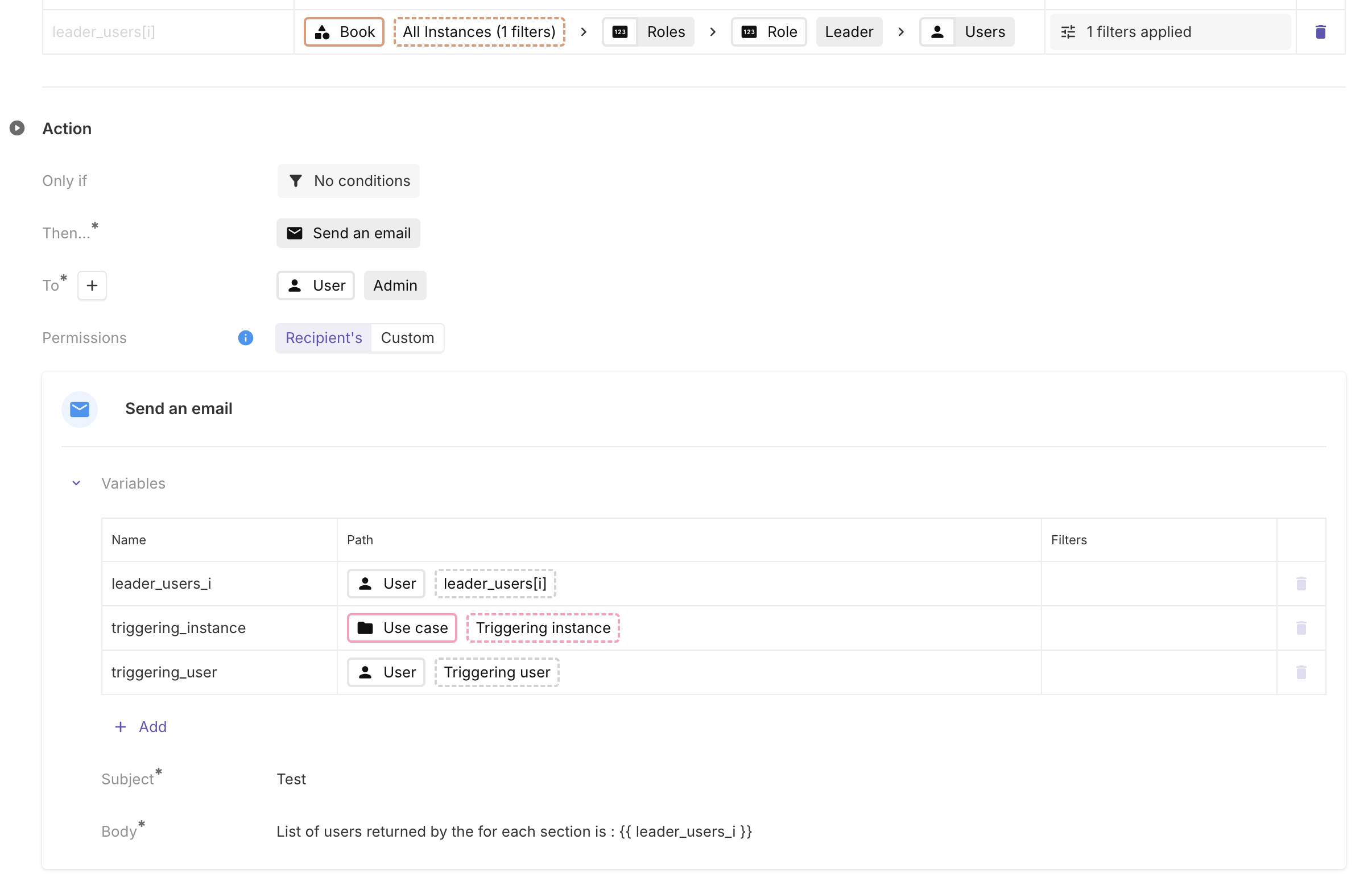
In addition, users must be activated to receive emails. If a user is deactivated from the platform, he will not receive any emails.
Are there conditions in Only if?
Conditions can be defined in Only if. Those conditions need to be matched in order to have the mail sent.
If the conditions defined are numerous, it may be useful to simplify them temporarily in order to check whether this is the cause.
Are the permissions set correctly?
If Permissions are set to a User (the recipient of the mail or the path to a User), the given User should have the rights to:
- See the event that triggers the automation, if the trigger is Listen to events.
- See all variables that are used in the subject or body of the email.
Are the subject and body set correctly?
An error in the use of Variables will prevent the email from being sent. To find out if this is the cause, the subject and body can be replaced with two simple texts, with no Variables.
In addition, the email will not be sent if the Subject or Body is empty. For example, with the configuration below, the email will not be sent if the instance has no description.

Check Why Both the Run and Recipient Appear in History
Is the email in the spam folder?
If this is the case, please notify the DataGalaxy Portfolio support. In the meantime, if this is a recurring problem, the DataGalaxy Portfolio email address that is used for automation can be added to the approved senders list.
How long ago was the email sent?
Delays may occur between the time an email is sent and when it is received, depending on the recipient's email provider.
Contact Support If the Issue Persists
If after all these checks, the problem still can't be solved, the DataGalaxy Portfolio Support can help!