Use these techniques to save configured filters as links, filter dashboard data by a date parameter, and compare values from a path.
Save configured filters
Save configured filters as a link by clicking Copy link. Share the link with others or use it in dashboard buttons.

Filter dashboard data by a date parameter
It is common to want to filter data by date, for example, by having this type of parameter in dashboards:
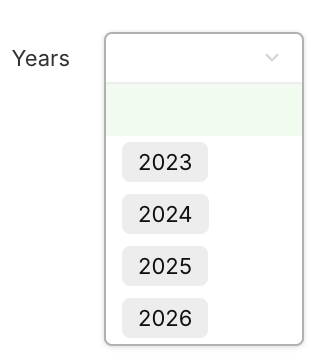
This parameter can then be used for example for the count of instances for the Concept A, such as counting instances created within a specific year: for 2024, only the instances created in 2024 need to be taken into account, etc.
In order to do so, the following steps can be followed:
- Create a Years concept.
- Create a date field with the correct granularity. In this example, the field is named Date Year.
- Use only this field for the concept chip representation.
- Create the required instances.
- Create a multidimensional boolean field (Concept A × Years). In this example, the field is named Is created this year ?.
- Set Input1 to Concept A > Dimension > Created At.
- Set Input2 to Years > Dimension > Date Year.
- The formula can then be:
IF(OR(COUNT(Input2)=0, YEAR(Input2)=YEAR(Input1)), TRUE, FALSE)TheCOUNT(Input2)=0condition returnsTRUEwhen the Years dimension is empty. In a dashboard, when no instance is selected for the parameter Years, all instances are counted regardless of their Created At date.
- Use the multidimensional field to filter instances.
- Add the Years dimension to the formula that counts the instances of Concept A.
- In the filter of the input Concept A > All instances, add a filter on Is created this year ? with the appropriate mappings.

Filter using the Is created this year? field.
- Add a Years parameter to the dashboard based on the Years concept.
- Use the Years parameter in the mappings of the dashboard widgets.
By following these steps, data can be filtered by date via a parameter in a dashboard.
Compare a text, date, number, or external key with a path
In advanced filtering (via Turn into advanced condition), certain field types, such as text, date, and number, do not support direct comparison with values originating from a path. Only fixed (literal) values can be selected as comparison targets.
Create an intermediate computed field to compare a field with a value that comes from another concept through a path.
Retrieve data domains with matching external keys
Objective: retrieve all Data Domains that share the same External Key as a Use Case.
Create the intermediate computed boolean field
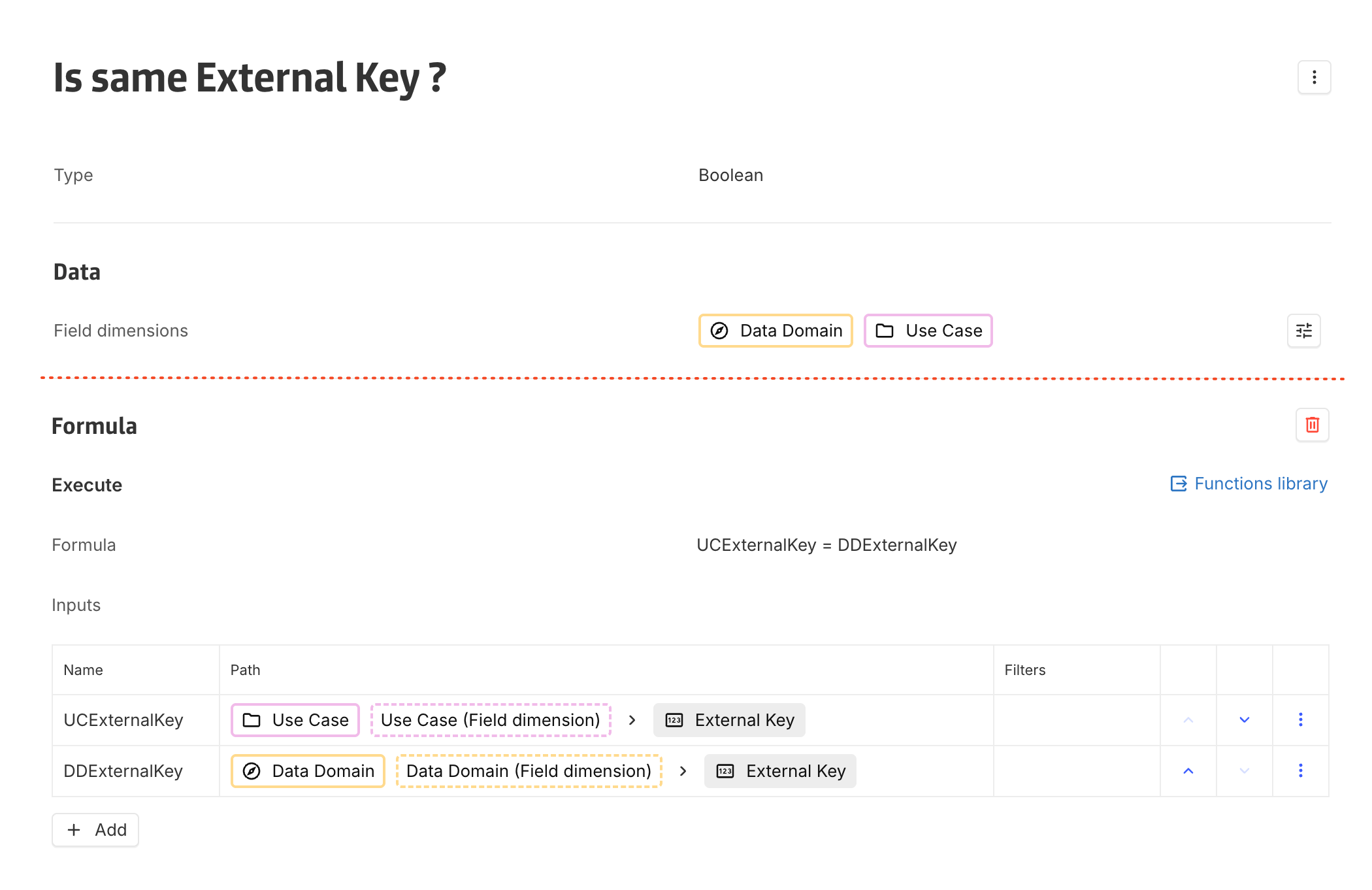
Create a computed multidimensional boolean field between the Use Case and Data Domain concepts. Its formula checks whether the External Key of the Data Domain matches the External Key of the Use Case.
Create the computed n-n association
Create a computed n-n association that returns all the Data Domains whose External Key matches the External Key of the related Use Case. Use the computed boolean from the previous step as the filter condition.
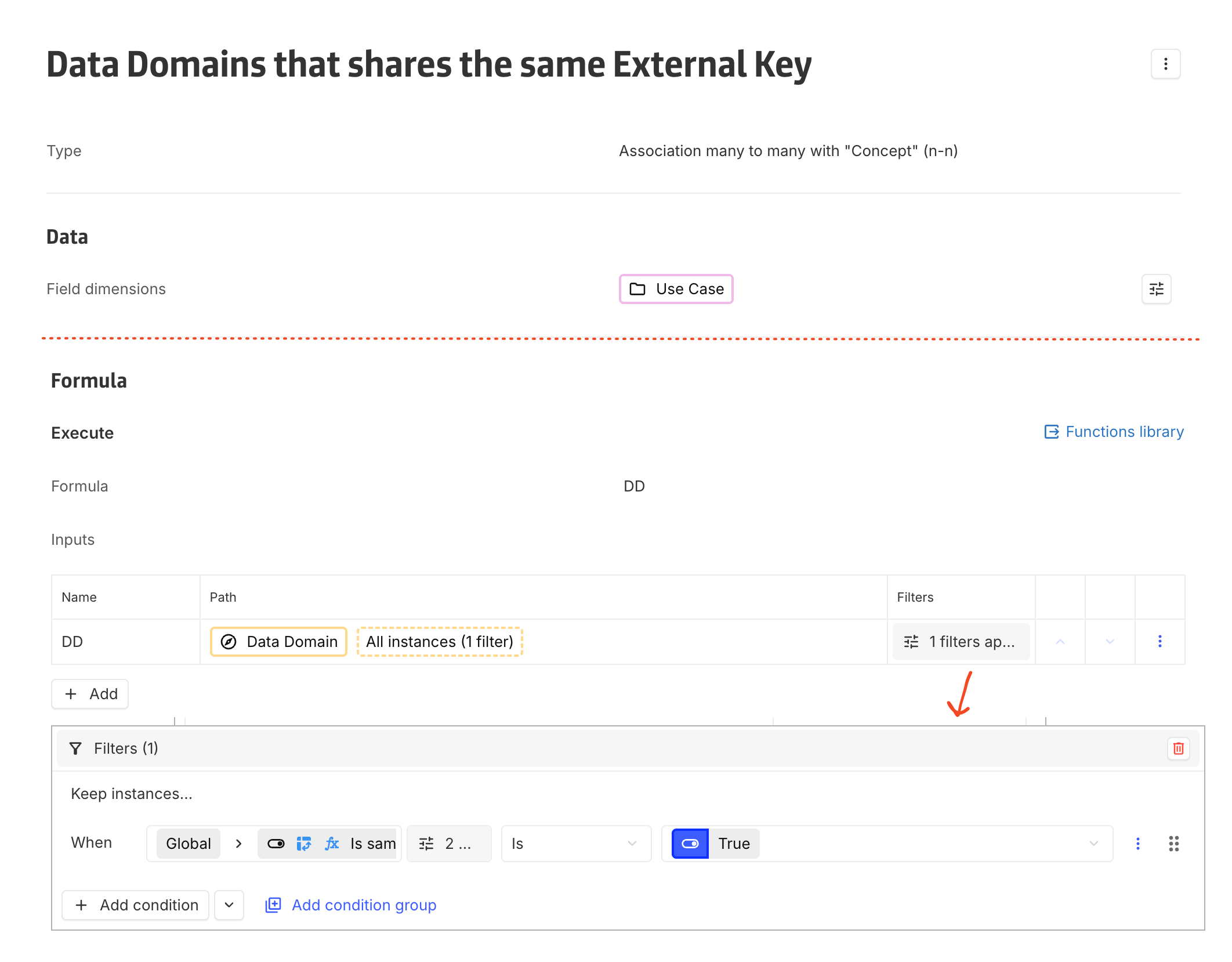
This approach enables comparison of dynamic values sourced from a path, even though advanced filters do not support such comparisons directly.