Overview
Tracking the lifecycle of a use case often requires storing the history of status changes. This documentation describes how to automatically generate a status history whenever a Use Case status is updated.
The mechanism relies on:
- An automation triggered by status updates
- A dedicated concept storing history records
- Optional duration computation to measure time spent in each status
Although the example applies to use cases, the same automation pattern can be reused for many other concepts or other needs.
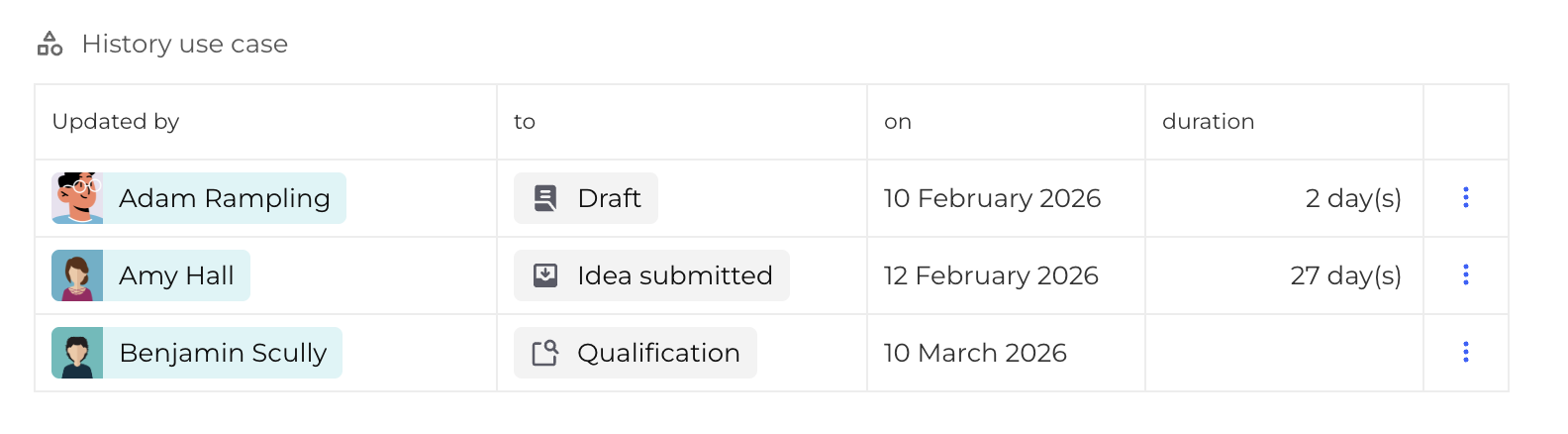
Create the history concept
A dedicated concept must be created to store history records: the History Use Case concept records every status change of a Use Case. It must then be embedded in the Use Case concept.
Recommended fields
Add fields to History Use Case
| Field | Type | Description |
|---|---|---|
| Updated by | Association (n-1 → User) | User responsible for the update |
| To | Association (n-1 → Status) | Status reached after the update |
| On | Date | Date when the status change occurred |
| Duration | Number (optional) | Time spent in the status |
Add fields to Use Case
| Field | Type | Description |
|---|---|---|
| History Use Case | Embedding (with History Use Case) | Embedding field storing history records |
| Last history Use Case | Association (n-1 → History Use Case) (optional) | Used to compute the duration by knowing the last history record for which the duration needs to be computed |
| New history Use Case | Association (n-1 → History Use Case) (optional) | Used to compute the duration by knowing the new history record created |
Configure the automation trigger
The automation must execute when the Status field of a Use Case changes.
Trigger configuration
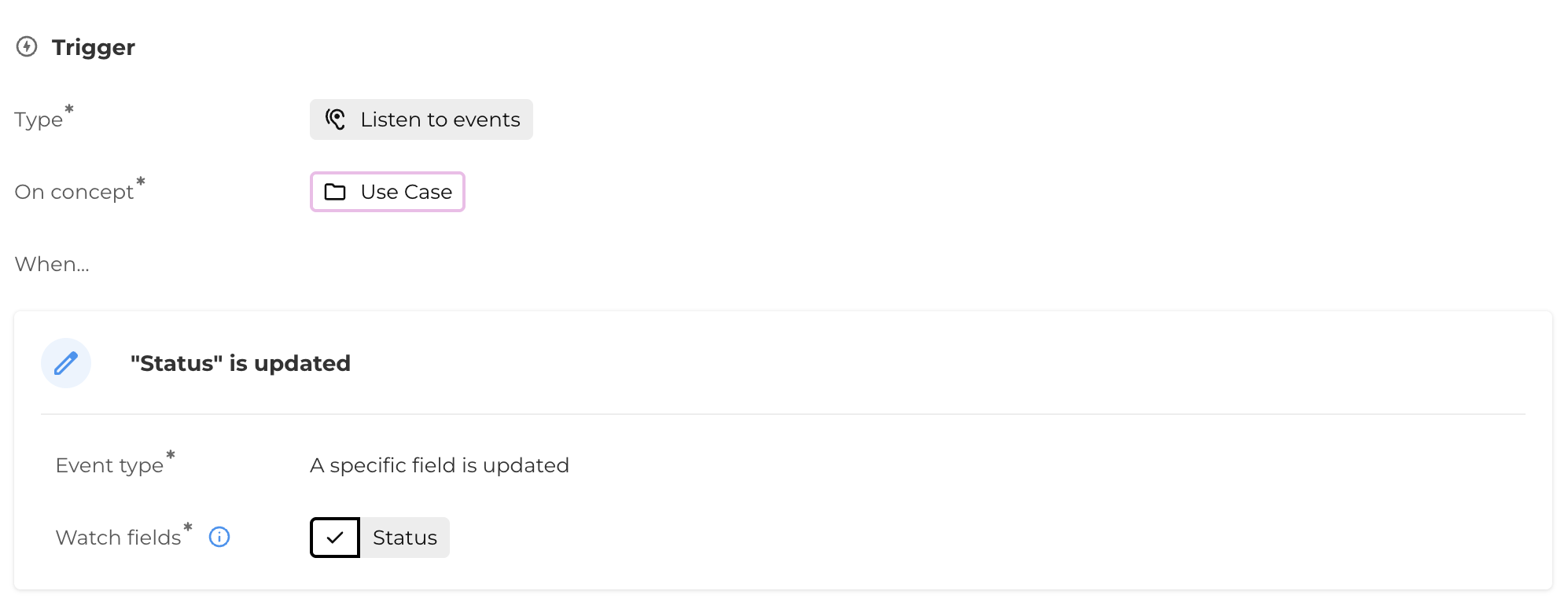
This ensures the automation runs every time the status changes.
Configure the automation steps
The automation performs several operations:
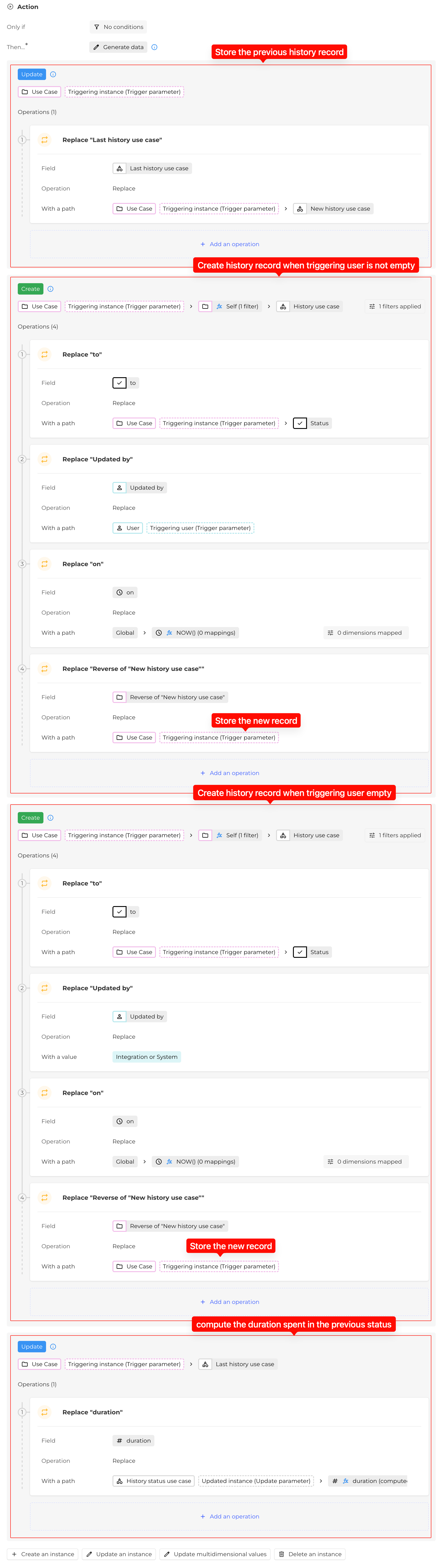
- Store the previous history record: before creating a new history entry, the previous history record must be stored. This allows the system to later compute the duration spent in the previous status.
- Create a new history entry:
- Record the responsible user
- Record the date of the change
- Record the status reached after the update
- Optionally compute the duration spent in the previous status
Handle updates from integrations and the system
Some status updates may come from:
- Integrations
- Automations
- Migration / System
In those cases, the Triggering user is empty, and it is possible to represent those updates via a dedicated system user that can be created.
Handle both cases with Self filters
The automation must handle two possible situations when a status update occurs:
- The update is performed by a platform user
- The update is performed by an integration or the system
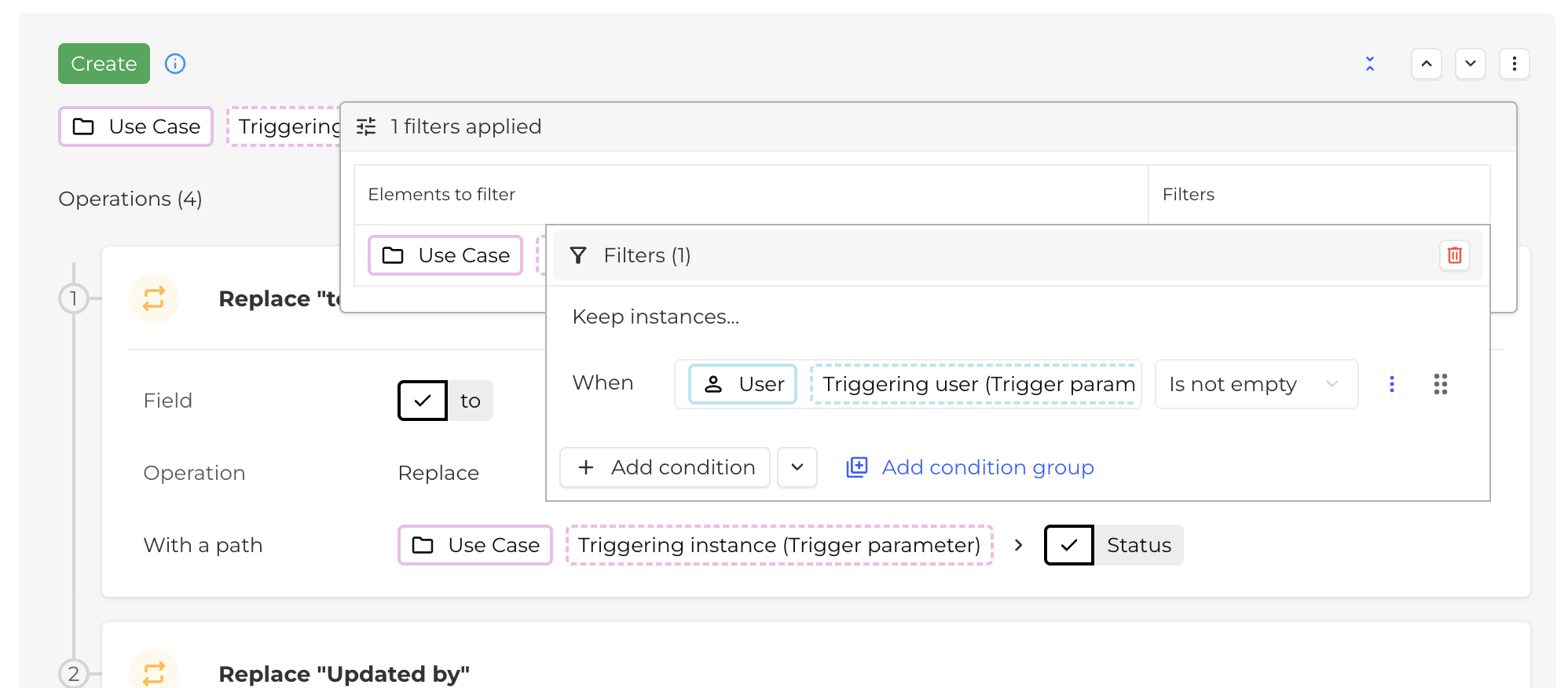
The challenge comes from the fact that the Only if condition of an automation block only allows one global condition. However, the automation requires two different behaviors depending on whether the Triggering user is empty or not.
To solve this limitation, two Create blocks are used, each relying on a Self field that can be used for filtering (more can be found about this tip on the documentation).
This technique allows the automation to simulate conditional branching.
Calculate the duration
When duration tracking is required, a computed field must be configured.
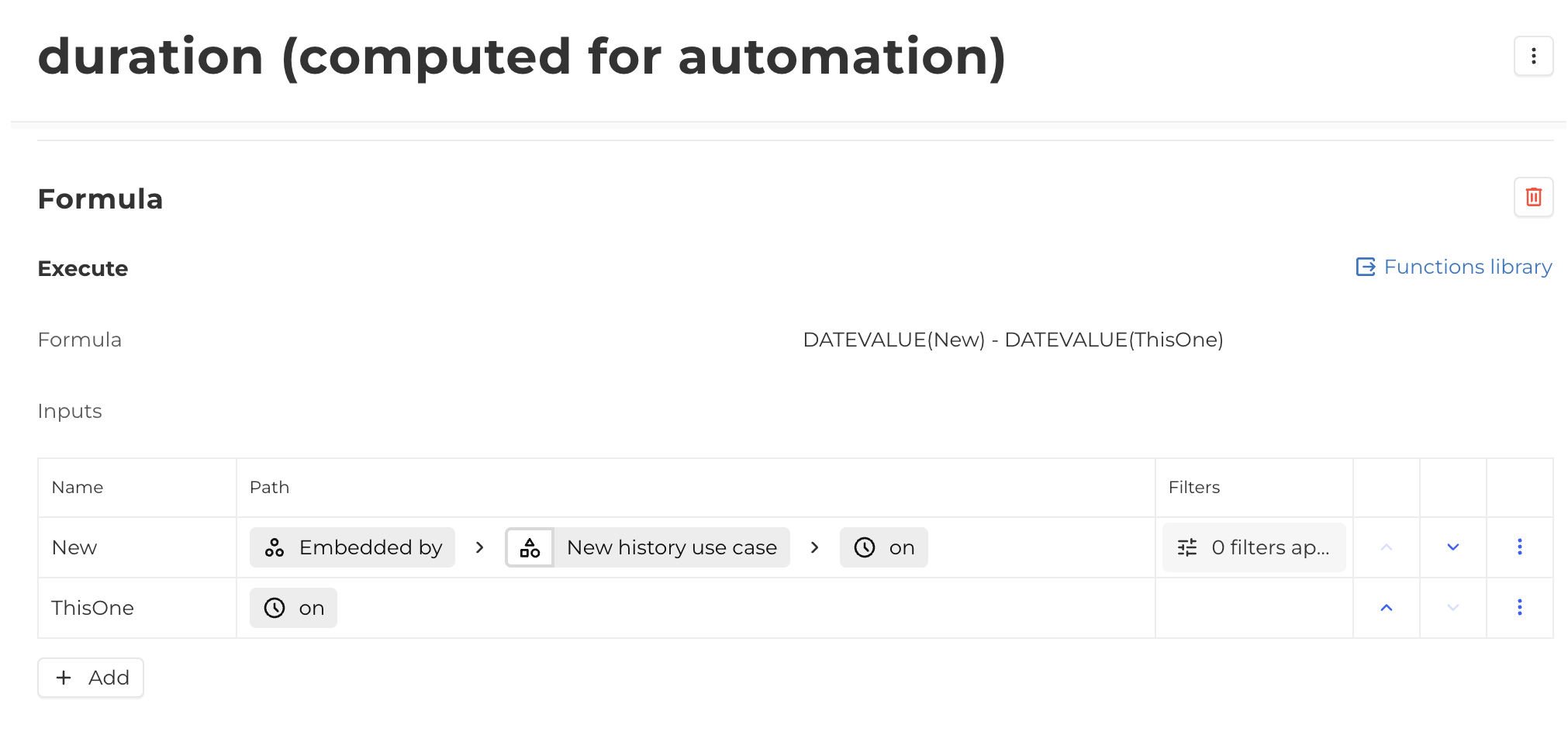
Order the automation blocks
- Update the previous history record
- Create the new history entry
- Compute the duration
The duration calculation requires the new history entry to exist before execution. Incorrect ordering will produce incorrect duration values.
Check known limitations
Duration values depend on the chronological integrity of history records. Manual modifications may introduce inconsistencies.
Examples:
- Modifying the On date
- Deleting a history record
- Inserting history entries manually
These actions may produce incorrect duration calculations. If inconsistencies occur, duration values must be manually corrected. All other automation behavior remains unaffected.