If the browser cannot contact the DataGalaxy Portfolio platform, the following procedure can be used to identify the origin of the problem.
Check your internet connection
The Internet connectivity can be checked with the following actions:
- Open another website in the browser, like https://www.google.com. Check if it’s working
- Open a console/terminal and run the following command
ping 1.1.1.1Check if the ping command receives some replies or if there is a timeout
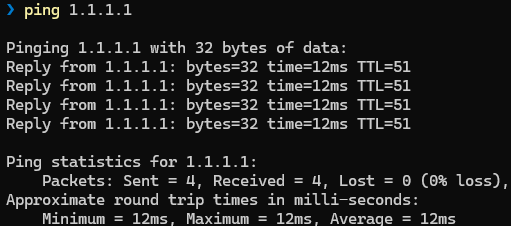
Successful ping command
- If there is no Internet connection issue, you can go on to the next section. Otherwise, please first resolve the Internet connection issue.
Check DNS resolution
- First open a console/terminal and run the following command
nslookup <tenant name>.yooi.io
- This should answer with 2 IP addresses like this:
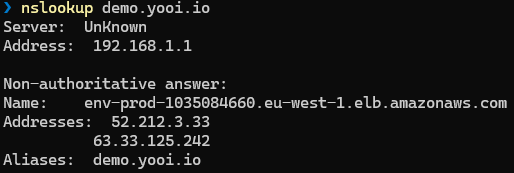
Successful nslookup command
- In case of failure (e.g. timeout or non-existent domain response), run the following command:
nslookup <tenant name>.yooi.io 1.1.1.1- If this command succeeds while the previous one failed, that means you have an issue with your DNS provider. Please first resolve the DNS issue.
- If this command fails with a timeout, there is probably an Internet connection issue, or your ISP is filtering requests on the Cloudflare 1.1.1.1 DNS server. In that case the test is inconclusive
- If the command fails with a non-existent domain, there is a problem on the DataGalaxy Portfolio side, please contact the support for further investigation
Check access to the platform
- Try to connect to the platform (e.g. open a browser on your tenant URL
https://<your tenant>.yooi.io)
Handle Error 503 or 504
Either
503 Service Temporarily Unavailable
504 Gateway Timeout
It could happen:
- during a software update of the platform. This should happen only outside business hours; however, exceptional conditions may require an update during business hours.
- when a platform unexpectedly shuts down. The automatic recovery process should restore the platform promptly.
In case the problem remains for more than a few minutes, please contact the DataGalaxy Portfolio support.
Run the diagnostic tool
- If you are experiencing issues such as being stuck on the loading screen or performance problems, please open the
/diagnosticpage on your tenant, for examplehttps://<your tenant>.yooi.io/diagnostic. This page provides information about SSE connectivity and the HTTP protocol version.
- SSE Connectivity Check: If the SSE check is failing, something is preventing your browser from establishing a Server-Sent Events (SSE) connection. The most probable cause is SSL inspection deployed by your IT department. Please contact them to resolve the issue.
- HTTP/2 and Parallel Channels: If the SSE tests are successful but both the Protocol test is failing and the SSE (20 parallel channels) test is failing, for example 6/20, you cannot perform calls using the HTTP/2 protocol. Therefore, you are limited to 2 open connections. This is also most probably related to a restriction from your IT services, such as a firewall or antivirus. Please contact them.
- If the issue is still not fixed after following these checks, please contact DataGalaxy Portfolio support and provide a description of the issue along with a screenshot of the
/diagnosticpage.